

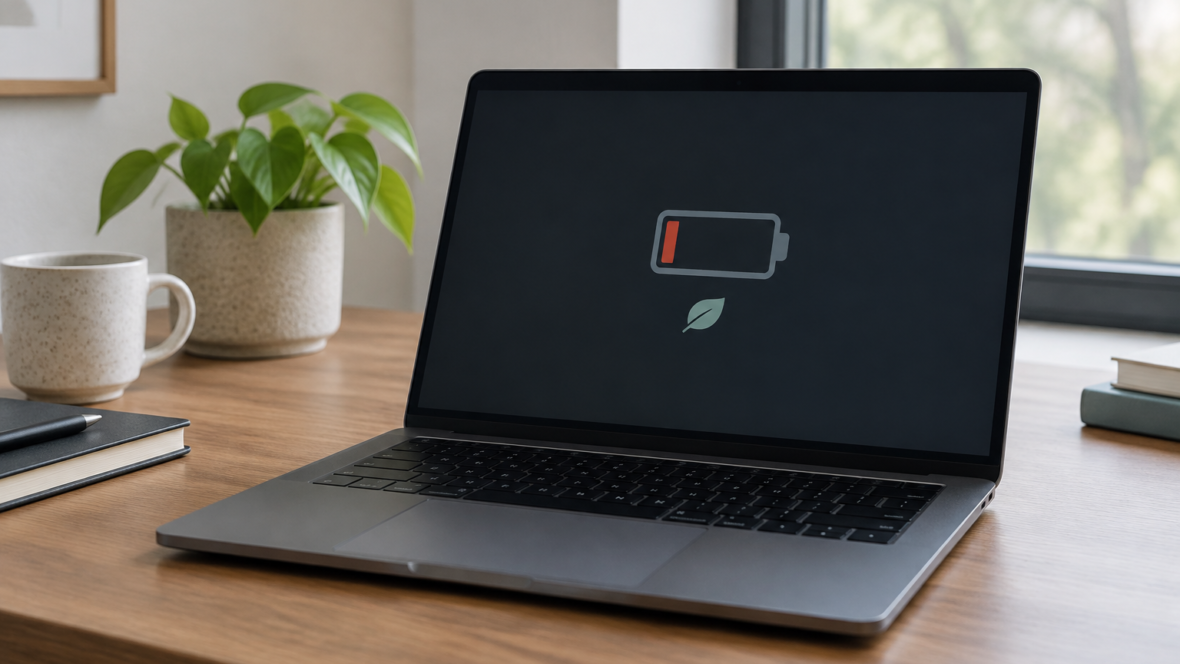
This article lists six ways to save your laptop’s battery while working. The authors explain that battery life depends not only on the condition of the battery but also on how the device is being used at any given moment.
Why a laptop may charge only to 80%
Some people notice their laptop does not charge to 100% — this can be due to built-in charge‑optimisation options. MacBook has an optimisation feature, and on Windows there is a similar option called “Smart Charging”.
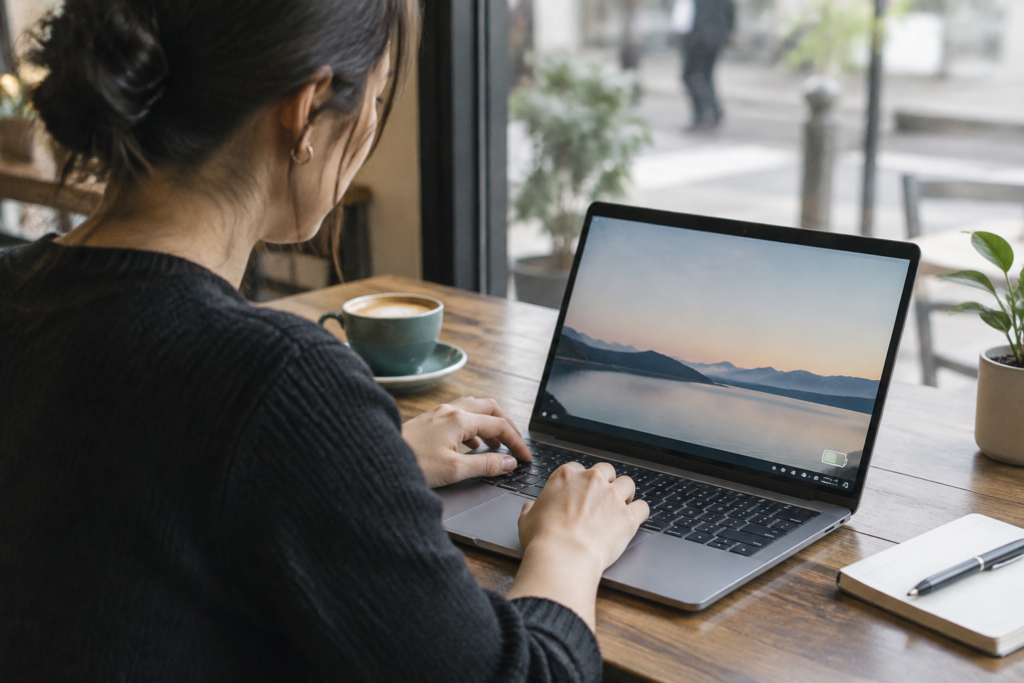
These features are designed to preserve lithium‑ion batteries, because constant charging to 100% can accelerate their wear. On Windows you can check the settings via the battery icon in the taskbar or in Settings → Power & battery.
If the charge does not reach 100% after checking the settings, it is recommended to restart the laptop, inspect the adapter and the charging port for damage, try a different charger, or update the battery drivers.
Six ways to save power while working
The article lists six concrete measures to save a laptop’s energy while working. Each point explains which settings or actions reduce consumption.
- Optimise display settings: the screen can consume up to 30−50% of energy; reducing brightness to 40−50% increases run time. Enabling a dark theme for OLED/AMOLED panels and lowering the refresh rate from 120/144 Hz to 60 Hz also helps.
- Enable a power‑saving mode: on Windows — via the battery icon drag the slider to “Better battery” or enable “Battery saver”; on macOS — in System Settings → Battery turn on “Low Power Mode”.
- Close unnecessary programmes, in particular messengers (Telegram, Discord), background downloaders, torrents and cloud storage services (OneDrive, Dropbox) that constantly sync files and load the processor.
- Turn off unnecessary wireless modules and peripherals: disable Bluetooth, unplug flash drives and external disks, switch off keyboard backlighting if you are not using those features.
- Avoid using power‑hungry applications, for example heavy graphics editors or specialised software that significantly increases system load.
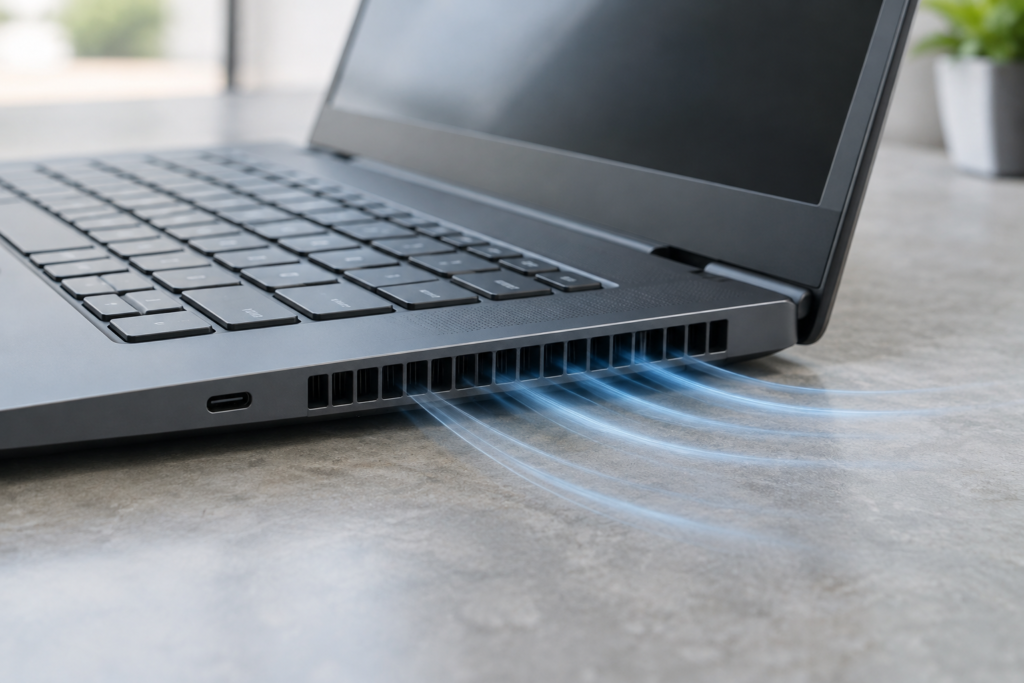
- Do not place the laptop on a blanket, pillow or your lap where ventilation openings are blocked; overheating forces the fans to run at maximum speeds and rapidly drains the battery. It is recommended to place the device on a hard, flat surface.
Each of the listed measures is aimed at reducing energy consumption while using a laptop without mentioning additional external costs or hardware modifications.